

This page can be referenced for styling and HTML formatting on this website. This page cannot be indexed by search engines. To find this page go to Article Manager > Website Styling and Tutorial.
Showcase Module Creation or Editing
The header of each page has the following styles to choose from for the text. If there is a button or no button, top/bottom, left/right, are the differences. My suggestion is to use images that accommodate bottom left if possible since a consistent placement is always better for a consistent site.
Please note that the head module showing on this page is a test module called Showcase (TEST) if you want to be able to practice how to make the changes.
Classes you can use include:
- .headbg-bottomright or .headbg-bottomright-nobut
- .headbg-bottomleft or .headbg-bottomleft-nobut
- .headbg-topright or .headbg-topright-nobut
- .headbg-topleft or .headbg-topleft-nobut
Steps for working with modules and classes:
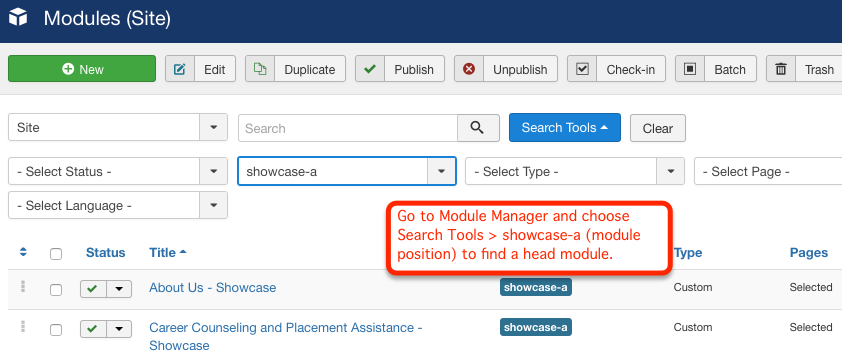
Step 1: Go to module manager to find a module to work with or copy for a new page. If you are editing a current module then click to open it. If you want to create a new module for a new page then open a module and click "save as copy" at the top of the window. This will create a new module, but it is unpublished till you choose a Menu Assignment (page you want it to show on) and after editing then choose Published under the Status option in the module.
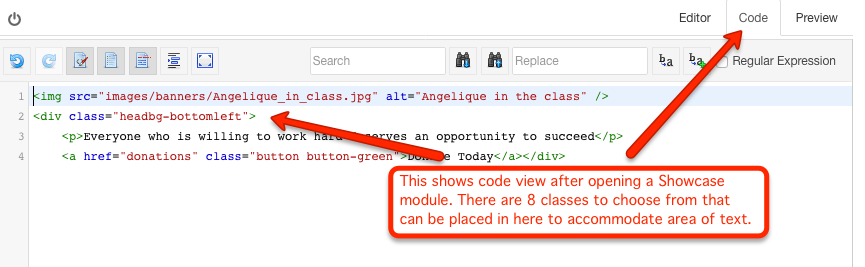
Step 2: After opening a module click on the code tab to be able to edit the style in the html. Change the class depending on the structure of the image and if you have a button or not. Reference the classes shown above to choose the correct class.
Step 3: If you created a new page be sure that the new head module is assigned to the new page as well as the search module. Both will need to be in place in order to have the correct styling.
Custom table classes for a 2 column bullet list
Following is an example. Go to page in admin and view code to see how it works.
- CSS
- XHTML
- Semantics
- Accessibility
- Usability
- Web Standards
- PHP
- Typography
- Grids
- CSS3
- HTML5
- UI
- CSS
- XHTML
- Semantics
- Accessibility
- Usability
- Web Standards
- PHP
- Typography
- Grids
- CSS3
- HTML5
- UI
| 1 | 2 | 3 |
| 1 | 2 | 3 |
| 1 | 2 | 3 |


